Claude Code Setup: Fixing "Not Authenticated: NotSignedIn" on First Run
Freshers across India, including Pune, are hitting a "Not Authenticated: NotSignedIn" error when setting up Claude Code. Here’s how to fix it step-by-step.
If you’re a fresher trying to get hands-on with Claude Code this week, you’re probably hitting a wall right at the start:
"An unexpected error with number 1000 has occurred: Not authenticated: NotSignedIn."
You’re not alone—this is the single most common blocker I’ve seen in 1:1s and group chats lately. Let’s break it down and get you unstuck.
What This Error Looks Like
You install Claude Code, launch it, and instead of the coding agent interface, you get:
```
An unexpected error with number 1000 has occurred: Not authenticated: NotSignedIn
```
(Source: Stack Overflow)
No prompt to sign in, no clear fix. Just a dead end.
Why This Happens
Claude Code requires you to authenticate your account before you can use any coding features.
But many freshers (especially those following older YouTube tutorials or skipping the docs) miss the new sign-in flow added in recent versions (Gradually AI Guide).
This is especially common if you:
- Use the native installer but skip the post-install sign-in
- Launch Claude Code from the terminal without linking your account
- Follow a guide that’s outdated or skips authentication
Step-by-Step Fix: Authenticate Claude Code Properly
Here’s how to get past the "NotSignedIn" error and start coding:
- Close all Claude Code windows and processes.
- Open your terminal and run the official sign-in command:
```bash
claude-code login
```
This will open a browser window for authentication.
- Sign in with your Claude account in the browser.
- If you don’t have one, create it now.
- Wait for the terminal to confirm successful authentication.
- You should see a message like:
`✔️ Authenticated as your.email@example.com`
- Restart Claude Code:
```bash
claude-code start
```
- You should now see the coding agent interface, not the error.
Common Wrong Turns Freshers Take
- Skipping the login step:
Many think the install is enough and never run `claude-code login`.
- Trying to sign in inside the agent UI:
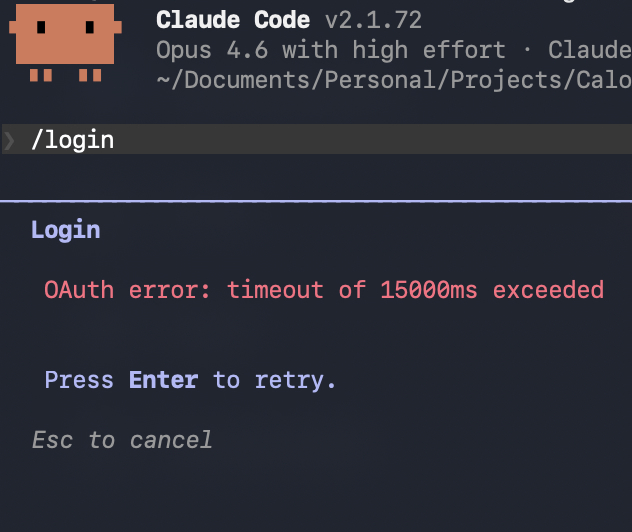
The error prevents the UI from loading, so you must authenticate via terminal first.
- Using old guides:
Older tutorials may not mention the new authentication flow added in recent versions (Gradually AI Guide).
- Multiple installs:
Installing Claude Code multiple times doesn’t fix authentication—only the login command does.
Verify It Worked: Quick Checklist
- Run `claude-code start` in your terminal.
- The agent UI should open without the "Not authenticated" error.
- You should see your email or username shown in the Claude Code interface.
- Try a sample coding prompt—if it runs, you’re set.
This week, do this
- If you hit "Not authenticated: NotSignedIn" on Claude Code, don’t reinstall or hunt for bugs—just authenticate via `claude-code login` and restart.
- Bookmark the official guide for future reference.
- Want mentorship that covers these real-world setup issues, not just coding theory? Apply for the Pritam Mentor waitlist here.