Claude Code Setup: Why Most Freshers Install It Wrong (and the Right Way to Start)
Freshers rush to install Claude Code but skip the global setup step. Here's the exact install flow that prevents extension host errors and GitHub sign-in failures.
This week, freshers across India—including Pune—are hitting the same wall: they install Claude Code (or Cursor, Codex, Windsurf), try to authenticate, and are met with extension host errors or broken GitHub sign-ins. The tool opens, but nothing connects. Most assume the problem is their laptop, their internet, or "maybe AI coding tools just don't work yet." The real issue? They skipped the global install step.
According to builders sharing their setups, most beginners install Claude Code the wrong way—treating it like a regular VS Code extension when it needs a proper CLI-first global setup. Even the Next.js docs now include guidance for AI coding agents like Claude Code, Codex, and Cursor, acknowledging that framework tooling needs to align with how these tools load bundled documentation.
What the error looks like
You install the extension. You open a project. Then:
- Extension host error: VS Code shows a notification that the extension host terminated unexpectedly.
- GitHub sign-in fails: Clicking "Sign in with GitHub" does nothing, or loops back to the same prompt.
- The sidebar loads, but autocomplete, chat, or agent features never activate.
This is now a tagged, recurring issue on Stack Overflow, especially among freshers setting up Claude Code, Cursor, and similar agent-based coding tools for the first time.
Why it happens
Most freshers follow a YouTube tutorial or Instagram reel that says "install the extension from the marketplace." They do that—then stop. But tools like Claude Code rely on:
- A global CLI binary that handles model inference, token management, and API auth.
- An extension that surfaces the agent inside your editor.
- Proper authentication tokens for GitHub (for Copilot context) or Anthropic/OpenAI APIs.
When you skip step 1, the extension loads but has no agent runtime to talk to. As one setup guide puts it: "Getting started with Claude Code is easier than people think. Three steps." But freshers skip straight to step 3 (the extension) and wonder why nothing works.
The correct setup (step-by-step)
Here's the exact flow used by builders who ship with Claude Code:
### Step 1: Install the global CLI
Open your terminal and run:
```bash
npm install -g claude-code
```
or, if using Yarn:
```bash
yarn global add claude-code
```
Verify the install:
```bash
claude-code --version
```
You should see a version number (e.g., `1.2.3`). If you get "command not found," your global `node_modules/.bin` is not in your PATH. Fix that first:
```bash
export PATH="$(npm config get prefix)/bin:$PATH"
```
Add that line to your `~/.bashrc` or `~/.zshrc` so it persists.
### Step 2: Authenticate the CLI
Run:
```bash
claude-code auth
```
This will open a browser window to connect your Anthropic API key or GitHub account. Complete the flow. You'll see a confirmation in the terminal.
### Step 3: Install the VS Code extension
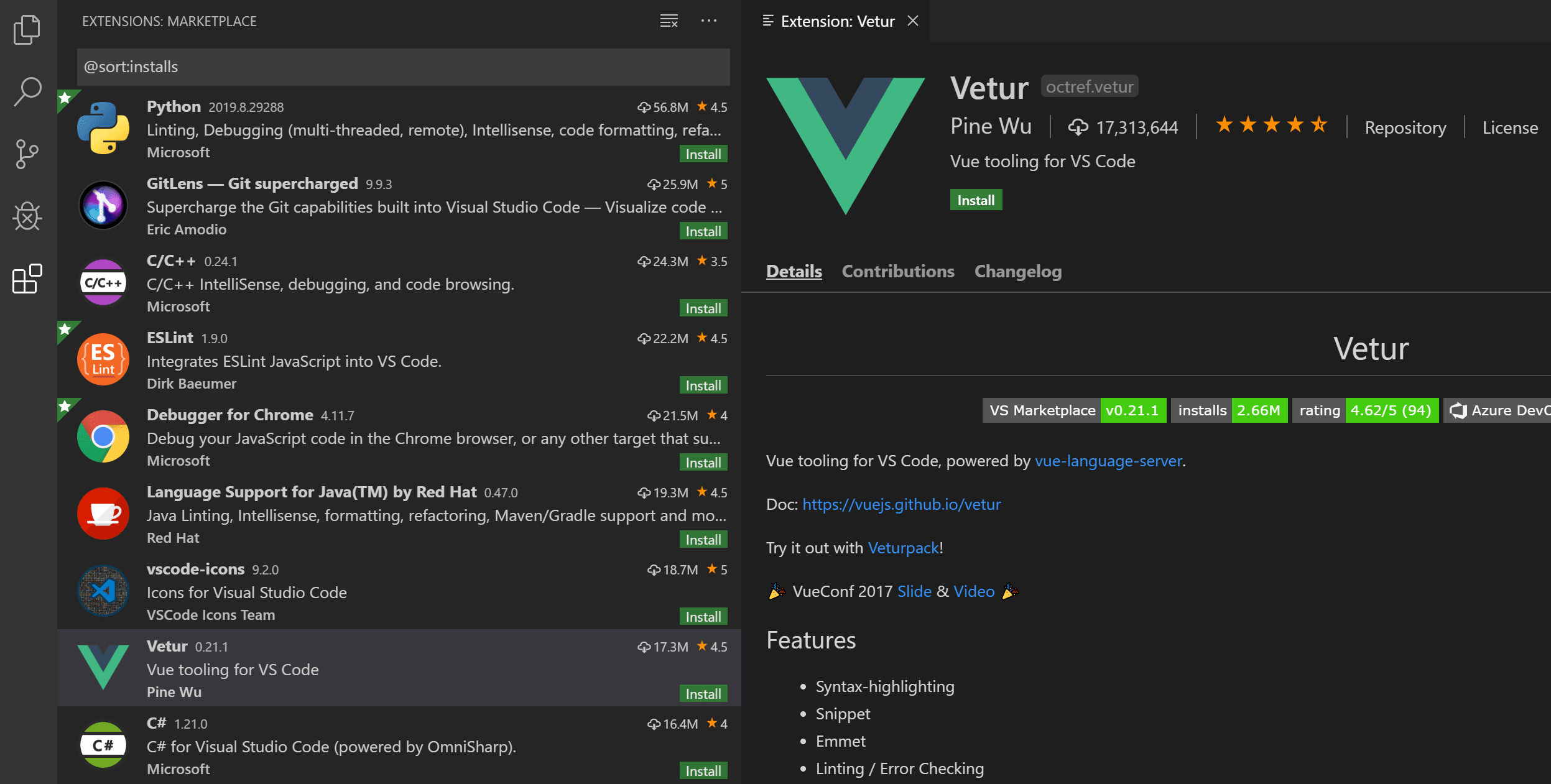
Now—and only now—go to the VS Code marketplace and install the "Claude Code" extension (or Cursor, Codex, etc., following the same pattern).
Reload VS Code. The extension will detect the global CLI and connect.
### Step 4: Test the connection
- Open a `.js` or `.tsx` file.
- Trigger autocomplete (type a comment like `// function to fetch user data`).
- Open the Claude Code sidebar (icon in the left bar).
If you see suggestions or the chat interface responds, you're live.
Common wrong turns freshers take
- Installing only the extension, no CLI. This is the #1 mistake. The extension is a UI wrapper; the agent logic lives in the CLI.
- Using an outdated Node version. Claude Code (and most modern tooling) expects Node 18+. Run `node -v`. If you're on 14 or 16, upgrade via nodejs.org or `nvm`.
- Skipping the auth step. The CLI needs an API key or OAuth token. Without it, the agent has no model to call.
- Mixing package managers. If you install the CLI with `npm` but your project uses `yarn` or `pnpm`, path resolution can break. Stick to one manager globally.
- Not reloading VS Code. After installing the extension, always Reload Window (Cmd+Shift+P > "Reload Window"). Extensions don't hot-reload.
Verify it worked: 5-point checklist
Run through this before asking for help:
- CLI installed? `claude-code --version` returns a version number.
- Auth complete? `claude-code whoami` shows your connected account.
- Extension active? VS Code's Extensions panel shows "Claude Code" as enabled (green checkmark).
- No errors in Output? View > Output > Claude Code shows "Connected" or similar.
- Autocomplete fires? Type a comment in a `.js` file; you see AI-generated code suggestions.
If all five pass, you're job-ready to build with Claude Code. If any fail, re-run the setup from Step 1.
Local LLM alternative (optional, for freshers on a budget)
If you're experimenting and don't want to pay for API credits yet, you can run Claude Code locally using Ollama:
- Install Ollama: ollama.com
- Pull a coding model: `ollama pull qwen2.5-coder` (or `qwen3-coder`)
- Point Claude Code to the local endpoint (see the extension's settings for "Custom API Endpoint")
This won't match Claude 3.5 Sonnet's quality, but it's free and runs offline—great for late-night practice sessions.
This week, do this
If you installed Claude Code (or Cursor, Codex) in the past week and it "doesn't work," uninstall the extension, start from Step 1 above (global CLI first), then reinstall. You'll have a working setup in under 10 minutes.
Freshers who fix this now will spend the rest of the month shipping projects with AI assistance—while others are still Googling "why doesn't my extension load."
Want a mentor to catch setup mistakes like this before they cost you a week? Serious freshers (Pune, Bangalore, remote—anywhere in India) can join the Pritam Mentor waitlist at pritamkamble.com/#apply. One-on-one, project-driven, Full-Stack + GenAI. No fluff, no recorded lectures—just you, me, and your GitHub commit history.