Claude Code "Unknown Error" After Fresh Install — Why It Breaks and How to Fix It
Freshers reinstalling Claude Desktop hit the same cryptic error loop. Here's the exact setup sequence that works, the missing piece most tutorials skip, and how to verify before you write a line of code.
This week, the same Stack Overflow question landed twice: "Claude Code does not work throwing this error" — right after a fresh format and reinstall. The error message is vague, the loop is maddening, and every fresher hits it because the official quick-start skips one critical dependency check.
If you're setting up Claude Code for the first time — especially on a budget laptop or after a clean OS install — this is the wall you'll hit. Let's fix it once.
What the error looks like
You've installed the Claude Desktop app. You open it, try to invoke Claude Code (the agentic coding mode that can edit files, run terminal commands, and scaffold projects), and immediately get a generic failure or "unknown error" dialog. No stack trace. No hint whether it's auth, network, or missing tooling.
The two identical Stack Overflow posts describe the exact loop: format → reinstall → immediate error on first Code invocation. The frustration is real because the app *opens* fine; it's only the Code feature that breaks.
Why it happens (and why reinstalling doesn't help)
Claude Code is an agentic workflow that manipulates your filesystem and runs shell commands. According to the official setup guide at claude.ai/code, you need:
- A GitHub account (for auth and repo access)
- Claude Pro or Max subscription ($20/month minimum)
- Git, Node.js, and Python installed and on your system PATH
Most freshers skip step three. When you format your machine, those CLI tools vanish. Claude Desktop installs cleanly because it's just an Electron wrapper, but the moment Code tries to `git clone` or `npm install`, it hits a missing binary and throws the generic error.
The Python guide for Claude Code confirms this: the toolchain must be externally installed — Claude doesn't bundle them.
Exact fix steps (run these in order)
### 1. Verify what's missing
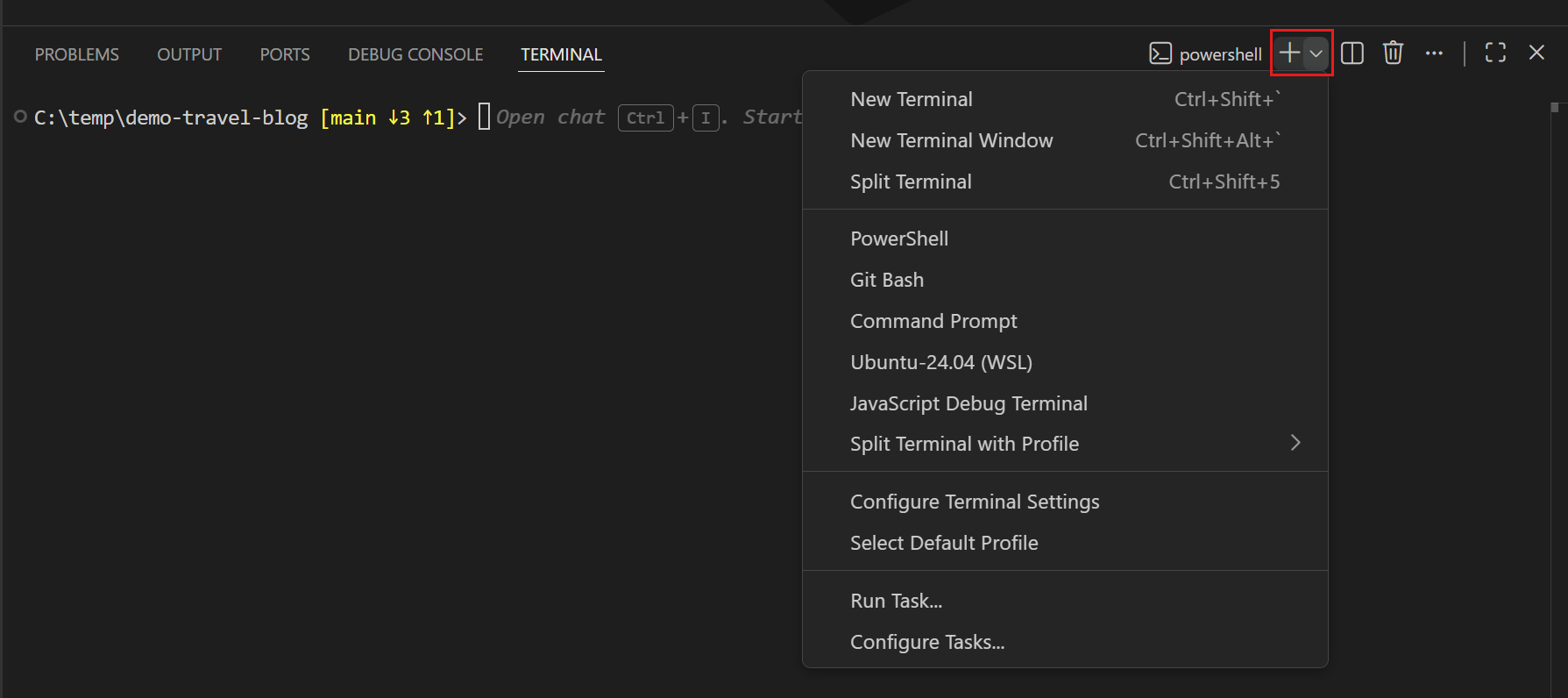
Open your terminal (Command Prompt on Windows, Terminal on macOS/Linux) and run:
```
git --version
node --version
python --version
```
If any command returns "not found" or "not recognized," that's your culprit.
### 2. Install the missing tools
Git:
- Windows: git-scm.com/download/win — use the installer, check "Add to PATH"
- macOS: `xcode-select --install` or `brew install git`
- Linux: `sudo apt install git` (Debian/Ubuntu) or `sudo yum install git` (RHEL/Fedora)
Node.js (LTS recommended):
- All platforms: nodejs.org — download the LTS version (20.x as of Q1 2025)
- Verify: `node --version` should show `v20.x.x`
Python:
- Windows/macOS: python.org/downloads — version 3.10+ is safe
- Linux: usually preinstalled; if not, `sudo apt install python3`
### 3. Restart your terminal (critical)
Close and reopen your terminal. PATH changes don't take effect in an already-open shell. Re-run the version checks from step 1.
### 4. Restart Claude Desktop
Quit the app completely (right-click the system tray icon and choose Quit). Relaunch it. Now try invoking Claude Code.
Common wrong turns freshers take
- Reinstalling Claude Desktop ten times.
The app itself is fine. The issue is your OS environment.
- Using outdated Node or Python from old tutorials.
Some YouTube setup videos from 2023 pin Node 16 or Python 3.8. Claude Code's dependencies have moved on — use LTS/stable versions.
- Assuming "Code" is a separate download.
There's no separate installer. If you have Claude Pro/Max, Code mode is built in — you just need the CLI tools on your system.
- Mixing Cursor and Claude Code without reading docs.
Stack Overflow questions show confusion between Cursor (a VS Code fork with its own agent) and Claude Code (Anthropic's official feature). They're different products. Pick one workflow for now.
Verify it worked
Run this checklist before you start a project:
- `git --version` → returns a version number
- `node --version` → returns v20.x or v18.x LTS
- `python --version` → returns 3.10+
- Open Claude Desktop → invoke Code mode on a test prompt like "scaffold a simple Express API"
- Check that Claude creates files and runs `npm install` without errors
If all five pass, you're clear.
Why this matters for Pune freshers (and everyone else)
Across India — including the Pune college and hiring scene — AI coding tools are becoming table stakes for internships and junior Full-Stack roles. Recruiters at Pune product companies now expect you to be fluent with at least one agent (Claude Code, Cursor, or GitHub Copilot). But fluent means you can set it up, debug it, and know when to override it — not just paste prompts.
The setup pain you hit today is the same pain every fresher hits. The difference is whether you power through with a checklist or reinstall five times and give up.
This week, do this
- Verify Git, Node, Python are installed and on PATH.
- Restart your terminal and Claude Desktop.
- Test Code mode with one trivial scaffold task.
- If it works, build something small (a To-Do API, a landing page) to confirm the full loop.
- If it still breaks, screenshot the exact error and search Stack Overflow or the official docs — most are already answered.
Serious about going from setup struggles to job-ready Full-Stack + GenAI skills? Join the Pritam Mentor waitlist at pritamkamble.com/#apply — I'll walk you through this and everything that comes after, 1-on-1.